Disclosure: As an Amazon Associate I earn from qualifying purchases. This site contains affiliate links.

Google Analytics 4 Complete Guide: Everything You Need to Know

Local LLMs on NVIDIA Spark / ASUS GX10
Google Analytics 4 Complete Guide: Everything You Need to Know
Google Analytics 4 is the only game in town. Universal Analytics is gone, and GA4 is the standard web analytics platform for the foreseeable future.
But I understand why so many people find GA4 frustrating. The interface is different, the data model changed fundamentally, and features you relied on in Universal Analytics either moved or disappeared. After working with GA4 since its early days, I can tell you that once you understand its logic, it is genuinely more powerful than what came before.
This guide covers everything you need to know: from initial setup to advanced features, with a focus on practical use cases rather than theoretical concepts.
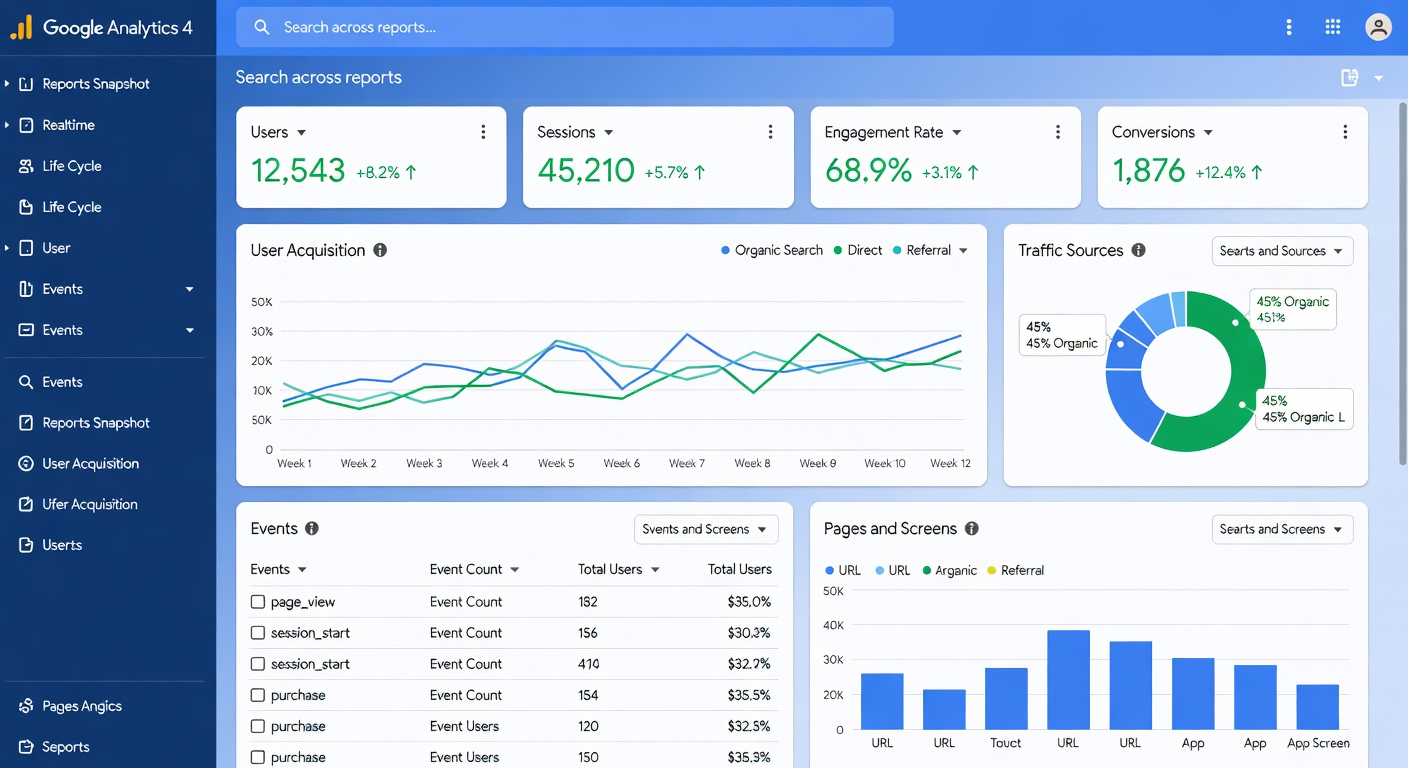
GA4 Fundamentals: The Data Model
Before diving into setup, you need to understand the fundamental change in GA4's data model.
Universal Analytics was session-based. Everything revolved around sessions, pageviews, and hit types.
GA4 is event-based. Everything -- pageviews, clicks, scrolls, purchases, form submissions -- is an event. Sessions still exist, but they are derived from events rather than being the primary unit.
This matters because:
- You have much more flexibility in tracking user interactions
- Cross-platform tracking (web + app) uses the same data model
- Custom events let you track virtually anything
- Attribution is more nuanced and accurate
Key GA4 Concepts
Events: Every user interaction is an event. GA4 collects some automatically (page_view, session_start, first_visit), enhanced measurement events (scroll, click, file_download, video_engagement), and custom events you define.
Parameters: Events carry parameters (additional data). A purchase event might include parameters for value, currency, item names, and quantities.
Users: GA4 tracks users across sessions using a combination of User ID, Google Signals, device ID, and modeled data.
Sessions: Derived from events. A session starts with session_start and has a 30-minute inactivity timeout.
Key events (Conversions): Events you mark as important to your business. Previously called "conversions" in GA4, now referred to as "key events."
Setting Up GA4 Properly
Step 1: Create Your GA4 Property
- Go to admin.google.com/analytics
- Click "Create Property"
- Enter your property name, reporting time zone, and currency
- Select your industry category and business size
- Choose your business objectives (this customizes default reports)
Step 2: Add a Data Stream
A data stream connects your website or app to your GA4 property.
For a website:
- Click "Data Streams" in the admin section
- Click "Add stream" and select "Web"
- Enter your website URL and stream name
- Copy your Measurement ID (G-XXXXXXXXXX)
Step 3: Install the Tracking Code
Option A: Google Tag Manager (Recommended)
- Create a Google Tag Manager account and container
- Add the GTM snippet to your website's
<head>and<body> - In GTM, create a new GA4 Configuration tag
- Enter your Measurement ID
- Set the trigger to "All Pages"
- Publish the container
Option B: Direct Installation
Add the gtag.js snippet directly to your website's <head>:
<script async src="https://www.googletagmanager.com/gtag/js?id=G-XXXXXXXXXX"></script>
<script>
  window.dataLayer = window.dataLayer || [];
  function gtag(){dataLayer.push(arguments);}
  gtag('js', new Date());
  gtag('config', 'G-XXXXXXXXXX');
</script>
Option C: CMS Plugins WordPress users can install Google Site Kit or a GA4 plugin. For other CMS options, see our WordPress plugins guide.
Step 4: Configure Enhanced Measurement
Enhanced Measurement automatically tracks common interactions. Go to your data stream settings and enable:
- Page views (on by default)
- Scrolls (90% scroll depth)
- Outbound clicks
- Site search
- Video engagement (YouTube embeds)
- File downloads
- Form interactions
I recommend enabling all of these unless you have a specific reason not to.
Step 5: Set Up Key Events (Conversions)
Identify the actions that matter most to your business and mark them as key events:
For a blog:
- Newsletter signup
- Contact form submission
- Affiliate link click
- Content download
For e-commerce:
- Purchase
- Add to cart
- Begin checkout
- View item
For SaaS:
- Sign up / account creation
- Trial start
- Feature usage milestones
- Upgrade/purchase
Navigate to Admin > Key Events to mark existing events or create new ones.

Custom Event Tracking
The real power of GA4 comes from custom events tailored to your business. Here is how to set them up:
Using Google Tag Manager
-
Define your event. What user action do you want to track? (Button click, form submission, scroll to specific section, etc.)
-
Create a trigger in GTM. Configure when the event should fire based on the user action.
-
Create a GA4 Event tag. Map the trigger to a GA4 event with relevant parameters.
-
Test in preview mode. Always test before publishing.
-
Publish and verify in GA4 DebugView.
Recommended Custom Events
| Event Name | Parameters | Use Case |
|---|---|---|
| newsletter_signup | source, form_location | Track email signups |
| affiliate_click | product_name, destination_url | Track affiliate clicks |
| content_engagement | article_title, scroll_depth, time_on_page | Measure content quality |
| cta_click | cta_text, cta_location, destination | Track CTA effectiveness |
| search_query | search_term, results_count | Understand user intent |
Event Naming Conventions
GA4 has strict naming rules:
- Event names are case-sensitive
- Use snake_case (lowercase with underscores)
- Maximum 40 characters
- Cannot start with a number or "google_" or "firebase_"
- Up to 500 distinct event names per property
- Up to 25 parameters per event
Understanding GA4 Reports
Realtime Report
Shows activity happening on your site right now. Useful for:
- Verifying tracking is working after setup
- Monitoring campaign launches
- Checking real-time traffic during events
Acquisition Reports
User acquisition: How new users first discover your site. Dimensions include first user source, medium, campaign.
Traffic acquisition: How all users (new and returning) arrive at your site per session.
Key metrics: Users, sessions, engagement rate, key events.
Engagement Reports
Events: All events being collected, with counts and user counts.
Pages and screens: Performance of individual pages (replaces the old "All Pages" report).
Landing pages: Which pages users arrive on first.
Key metrics: Engagement rate, engaged sessions per user, average engagement time.
Monetization Reports
If you have e-commerce tracking configured:
- Revenue by product, category, and brand
- Purchase funnel analysis
- Promotion and coupon performance
Retention Reports
User retention over time: how many users return after their first visit, and how often.
Explorations: GA4's Most Powerful Feature
Explorations are where GA4 truly outshines Universal Analytics. They provide flexible, custom analysis capabilities that previously required BigQuery or third-party tools.
Exploration Types
Free-form exploration: The most versatile. Build custom tables, charts, and graphs with any combination of dimensions and metrics.
Funnel exploration: Visualize user journeys through defined steps. See where users drop off and how different segments behave.
Path exploration: Discover the paths users take through your site. Start from a page or event and see where they go next (or where they came from).
Segment overlap: Compare up to three user segments visually. Understand which audiences overlap and which are distinct.
User lifetime: Analyze users over their entire relationship with your site, not just individual sessions.
Cohort exploration: Group users by acquisition date and track their behavior over time.
Building Your First Exploration
- Go to Explore in the left navigation
- Click "Blank" to start from scratch
- In the Variables panel, add the dimensions and metrics you need
- Drag them into the Tab Settings panel to build your report
- Apply segments and filters as needed
- Save and share with your team
AI Insights in GA4
GA4's AI-powered insights surface anomalies, trends, and opportunities automatically. You will find them in the Insights section of the Home report.
What GA4 AI can tell you:
- Traffic anomalies (sudden spikes or drops)
- Conversion trend changes
- Audience behavior shifts
- Predicted revenue and churn (for eligible properties)
- Custom insight alerts you configure
Setting up custom insights:
- Go to Insights and click "Create"
- Define the metric and conditions
- Set the evaluation frequency
- Choose notification preferences
Example custom insights:
- Alert when daily organic traffic drops by more than 20%
- Notify when conversion rate for a specific page changes significantly
- Flag when a new traffic source exceeds 100 sessions
Understanding the ML systems behind these AI insights gives you a better sense of when to trust them and when to investigate further. Designing Machine Learning Systems covers the architectures that power these kinds of analytical AI features.
BigQuery Integration
For serious analytics, BigQuery integration unlocks the full power of GA4 data.
Why BigQuery Matters
- Raw data access: See every individual event, not aggregated summaries
- Custom analysis: Run SQL queries on your complete dataset
- Data retention: GA4 standard retains data for 2-14 months. BigQuery stores it indefinitely
- ML capabilities: Build predictive models on your analytics data
- Cross-platform joining: Combine GA4 data with CRM, email, and other sources
Setting Up BigQuery Export
- Create a Google Cloud project (or use an existing one)
- In GA4 Admin, go to BigQuery Links
- Click "Link" and select your Cloud project
- Choose daily export (free for most sites) or streaming export (costs apply)
- Select which events to export
Cost considerations: Daily export is free within BigQuery's free tier (10 GB storage, 1 TB queries/month). Streaming export costs approximately $0.05 per 200MB.
Essential BigQuery Queries
Here are starter queries I use regularly:
Top pages by engaged sessions:
SELECT
  (SELECT value.string_value FROM UNNEST(event_params) WHERE key = 'page_location') AS page,
  COUNT(DISTINCT CONCAT(user_pseudo_id, (SELECT value.int_value FROM UNNEST(event_params) WHERE key = 'ga_session_id'))) AS sessions
FROM `your-project.analytics_XXXXXXXX.events_*`
WHERE event_name = 'page_view'
  AND _TABLE_SUFFIX BETWEEN '20260201' AND '20260224'
GROUP BY page
ORDER BY sessions DESC
LIMIT 20
Conversion path analysis:
SELECT
  traffic_source.source,
  traffic_source.medium,
  COUNT(*) AS conversions
FROM `your-project.analytics_XXXXXXXX.events_*`
WHERE event_name = 'purchase'
  AND _TABLE_SUFFIX BETWEEN '20260201' AND '20260224'
GROUP BY 1, 2
ORDER BY conversions DESC
Common GA4 Mistakes and How to Fix Them
Mistake 1: Not Setting Data Retention
By default, GA4 retains user-level data for 2 months. Change this immediately.
Fix: Admin > Data Settings > Data Retention > Set to 14 months.
Mistake 2: Ignoring Filters
Without filters, your data includes internal traffic, development environments, and spam.
Fix: Admin > Data Streams > Configure Tag Settings > Define Internal Traffic. Then create a data filter to exclude it.
Mistake 3: Not Linking Google Services
GA4 works best when connected to your other Google tools.
Essential links:
- Google Ads (for campaign data and audiences)
- Google Search Console (for organic search data)
- BigQuery (for raw data access)
- Google Merchant Center (for e-commerce)
Mistake 4: Over-Relying on Default Reports
Default reports show a fraction of what GA4 can do. If you are only using default reports, you are missing the most valuable insights.
Fix: Learn Explorations. Start with the templates, then build custom analyses for your specific questions.
Mistake 5: Not Using UTM Parameters
GA4 relies on UTM parameters to properly attribute traffic from campaigns.
Fix: Use UTM parameters on every link you share in emails, social media, and paid campaigns. Format: ?utm_source=newsletter&utm_medium=email&utm_campaign=feb2026
GA4 for Content Marketers
If you are running a blog or content marketing strategy, here are the GA4 reports and explorations that matter most:
Content Performance Dashboard
Build an exploration that shows:
- Top pages by engaged sessions
- Average engagement time per page
- Scroll depth distribution
- Key event conversion rates by page
- Traffic source breakdown per article
Author Performance Tracking
If multiple authors contribute, use custom dimensions to track author-level metrics:
- Articles per author
- Average engagement per author
- Conversion rates by author
- Traffic trends by author
Content Funnel
Track how content drives business outcomes:
- Blog post view (page_view event)
- Content engagement (scroll, time on page)
- CTA click (custom event)
- Newsletter signup or product view (key event)
- Conversion (purchase, sign up, etc.)
Your GA4 Setup Checklist
- GA4 property created with correct time zone and currency
- Web data stream configured with Enhanced Measurement
- Tracking code installed and verified
- Data retention set to 14 months
- Internal traffic filters configured
- Key events (conversions) defined and tested
- Google Search Console linked
- Google Ads linked (if applicable)
- BigQuery export configured
- Custom events for your business goals implemented
- At least one custom exploration created
- Custom insights/alerts configured
For effective data analysis work, screen real estate matters. A LG 27UN850-W 4K Monitor lets you view dashboards and explorations side by side without squinting.

GA4 and Privacy in 2026
Privacy regulations continue to evolve. GA4 addresses this with:
- Consent mode: Adjusts data collection based on user consent status
- Data deletion requests: API for processing user data deletion
- IP anonymization: Built-in by default
- Data retention controls: Configurable at the property level
- Google Signals: Optional feature that provides cross-device insights
Ensure your GA4 implementation complies with GDPR, CCPA, and any other relevant privacy regulations. Work with a legal advisor if you are unsure.
For a broader view of how analytics fits into your digital marketing strategy, our SEO trends guide covers how to connect GA4 data with search performance. If you want professionals who can translate your GA4 data into an actionable SEO growth plan, Scale by SEO uses analytics-driven insights to build search strategies that deliver measurable results.
Beyond the Basics
GA4 is a deep platform. Once you have the fundamentals in place, explore:
- Audiences: Build custom audiences for remarketing and analysis
- Predictive metrics: Purchase probability, churn probability, predicted revenue
- User properties: Custom attributes for segmentation
- Looker Studio: Connect GA4 to build custom dashboards
- Data API: Pull GA4 data into custom applications and tools
The learning curve is real, but the insights GA4 provides are worth the investment. Start with the basics, build your comfort, and add complexity as your questions become more sophisticated.
Need help with your GA4 setup? Reach out on X (@wikiwayne) -- I regularly share GA4 tips and answer analytics questions.
Recommended Gear
These are products I personally recommend. Click to view on Amazon.
AI Engineering by Chip Huyen — Great pick for anyone following this guide.
Designing ML Systems by Chip Huyen — Great pick for anyone following this guide.
Clean Code by Robert C. Martin — Great pick for anyone following this guide.
 Prompt Engineering for Generative AI — Great pick for anyone following this guide.
 Logitech MX Keys S Wireless — Great pick for anyone following this guide.
 LG 27UN850-W 4K UHD — Great pick for anyone following this guide.
This article contains affiliate links. As an Amazon Associate I earn from qualifying purchases. See our full disclosure.
Affiliate Disclosure: As an Amazon Associate I earn from qualifying purchases. This site contains affiliate links.