Disclosure: As an Amazon Associate I earn from qualifying purchases. This site contains affiliate links.

Best Monitors for Coding in 2026: 4K, Ultrawide & Budget Picks

Local LLMs on NVIDIA Spark / ASUS GX10
Best Monitors for Coding in 2026: 4K, Ultrawide & Budget Picks
Your monitor is the window into your code. Every syntax highlight, every line of indentation, every pixel of your IDE — it all flows through your display. And yet, I talk to developers all the time who are writing code on a blurry 1080p panel from 2019 while wondering why their eyes hurt at the end of the day.
I've tested over a dozen monitors specifically for coding over the past year. Not for gaming, not for video editing, not for general office work — for the specific act of reading and writing code for 8-12 hours daily. The requirements are different, and the best monitor for a developer isn't always the one that wins traditional reviews.
Here are my top picks for 2026, covering 4K, ultrawide, and budget options.
What Makes a Great Coding Monitor
Before the reviews, let's establish what actually matters when you're staring at text all day:
Resolution and text clarity (most important): At 27 inches, 4K (3840x2160) gives you 163 PPI — crisp enough that individual pixels disappear. Text looks printed, not pixelated. At 1080p on the same size, you can see the jagged edges of every letter. This difference matters more for code than for almost any other use case.
Eye comfort: Flicker-free backlighting and low blue light modes reduce eye strain during long sessions. Some panels are genuinely easier on the eyes than others, regardless of specs.
USB-C connectivity: A single USB-C cable that carries video, data, and power (charging your laptop) simplifies your desk setup enormously. This has gone from nice-to-have to essential.
Height and tilt adjustment: Your monitor should be at eye level with a slight downward tilt. A fully adjustable stand saves you from buying a separate monitor arm.
Panel type: IPS panels offer the best viewing angles and color consistency. OLED delivers perfect blacks but risks burn-in with static UI elements (a real concern for coding). VA panels are a middle ground but often have slower pixel response.
Quick Comparison: Top 5 Coding Monitors
| Monitor | Resolution | Size | Panel | USB-C PD | Price |
|---|---|---|---|---|---|
| LG 27UN850-W | 4K (3840x2160) | 27" | IPS | 60W | $450 |
| ASUS ProArt PA279CRV | 4K (3840x2160) | 27" | IPS | 96W | $550 |
| Dell U2723QE | 4K (3840x2160) | 27" | IPS Black | 90W | $520 |
| Samsung ViewFinity S8 | 4K (3840x2160) | 27" | IPS | 60W | $400 |
| LG 40WP95C-W | 5K2K (5120x2160) | 39.7" | Nano IPS | 96W | $1,300 |
1. LG 27UN850-W — Best Value 4K

$450 | 27" | 4K IPS | 60W USB-C | sRGB 99%
The LG 27UN850-W is the monitor I recommend most often to developers, and it's the one I use as my primary display. It's not the flashiest option — it doesn't have the deepest blacks or the highest refresh rate — but it does everything a developer needs at a price that doesn't sting.
Why it works for coding:
The 4K IPS panel renders text beautifully. Characters are sharp at every size, and the anti-glare coating handles overhead lighting without washing out the display. I run it at native 4K resolution with 125% scaling on macOS, which gives me plenty of screen real estate while keeping text perfectly readable.
USB-C connectivity delivers video and 60W of power through a single cable. Plug in your MacBook or ThinkPad, and it charges while driving the display. The monitor also has a USB hub (two USB-A ports), so your mouse and keyboard can connect through the monitor instead of directly to your laptop.
The stand is fully adjustable — height, tilt, pivot, and swivel. You can even rotate it to portrait mode for reading documentation or long code files. No monitor arm required, though one does free up desk space.
Color accuracy is solid at 99% sRGB and HDR10 support. More than enough for web development where you need to verify colors, but not color-critical enough for professional design work.
What I'd improve: The 60W power delivery is adequate for ultrabooks but won't fully power hungrier laptops like a 16" MacBook Pro (which wants 140W). The built-in speakers are usable for Zoom calls but not much else.
Verdict: Best bang for your buck. If you're buying your first 4K coding monitor, this is the one.
2. ASUS ProArt PA279CRV — Best for Developer-Designers

$550 | 27" | 4K IPS | 96W USB-C | DCI-P3 99%
The ASUS ProArt PA279CRV is the monitor I'd recommend if you straddle the line between development and design. It covers 99% of the DCI-P3 color space (compared to 95% on the LG), delivers 96W over USB-C (enough to power a MacBook Pro 14"), and comes factory-calibrated with a Delta E < 2 color accuracy certificate.
Why developers should care about ProArt:
If you do any frontend work where color matters — and in 2026, that's most web developers — having a display you can trust is valuable. No more pushing CSS colors that look right on your screen but wrong on everyone else's. The ProArt shows you accurate colors out of the box.
The 96W USB-C is a meaningful upgrade over the LG's 60W. It fully charges a MacBook Pro 14" while driving the display, which means true single-cable operation. The USB hub includes USB-C and USB-A ports, plus an Ethernet pass-through.
Daisy-chain support lets you connect two monitors with a single cable from your laptop — DisplayPort out from the first monitor carries signal to the second. This is extremely clean for dual-monitor setups.
What I'd improve: It's $100 more than the LG for features that many developers won't fully utilize. If you don't need the wider color gamut or higher power delivery, the LG is a better value.
Verdict: Best choice for full-stack developers who also do design work, or anyone who wants the cleanest possible single-cable desk setup.
3. Dell U2723QE — Best IPS Black for Dark Mode

$520 | 27" | 4K IPS Black | 90W USB-C | sRGB 98%
If you code in dark mode (and in 2026, most of us do), the Dell U2723QE has a meaningful advantage: it uses Dell's IPS Black technology, which achieves a 2000:1 contrast ratio — roughly double what standard IPS panels deliver.
What IPS Black means for coding:
Standard IPS monitors display dark mode with a grayish tint — the "blacks" are really dark gray. IPS Black panels get noticeably closer to true black, making dark mode themes look the way they're designed to look. The difference is visible side-by-side and makes long dark-mode sessions easier on the eyes.
The 90W USB-C power delivery is excellent — it handles nearly all developer laptops without issue. Dell's USB-C hub implementation is among the best in the business, with reliable detection, fast switching, and good port selection (RJ45, USB-A, USB-C downstream).
Dell's monitor management software on Windows is genuinely useful for developers. Easy Arrange lets you create custom window tiling layouts, and KVM switching between multiple computers is smooth.
What I'd improve: The stand, while fully adjustable, has a large base that eats desk space. The menu system is sluggish — not something you interact with daily, but annoying during initial setup.
Verdict: Best choice for dark-mode developers who want deeper blacks without jumping to OLED (and its burn-in risks).
4. Samsung ViewFinity S8 — Best Budget 4K

$400 | 27" | 4K IPS | 60W USB-C | sRGB 98%
The Samsung ViewFinity S8 is the entry point for 4K coding monitors that don't compromise on the essentials. At $400, it undercuts the LG by $50 while offering nearly identical specs.
What you get for the price:
A clean 4K IPS panel with good text rendering, USB-C with 60W power delivery, a fully adjustable stand (including pivot to portrait), and Samsung's Intelligent Eye Care feature that automatically adjusts brightness and color temperature based on ambient lighting.
The Eye Care feature is actually useful for developers. It's more subtle than most auto-brightness implementations — it adjusts gradually rather than making sudden shifts that break your concentration. After a week of use, I stopped noticing it consciously but noticed my eyes felt less strained at end of day.
What you sacrifice: Build quality is a step below the LG and ASUS options. The bezels are slightly thicker. Color accuracy is good but not factory-calibrated. The USB hub only includes USB-A ports (no USB-C downstream or Ethernet).
Verdict: Best choice for developers on a budget who want 4K clarity and USB-C without breaking $400.
5. LG 40WP95C-W — Best Ultrawide for Coding

$1,300 | 39.7" | 5K2K Nano IPS | 96W Thunderbolt 4 | DCI-P3 98%
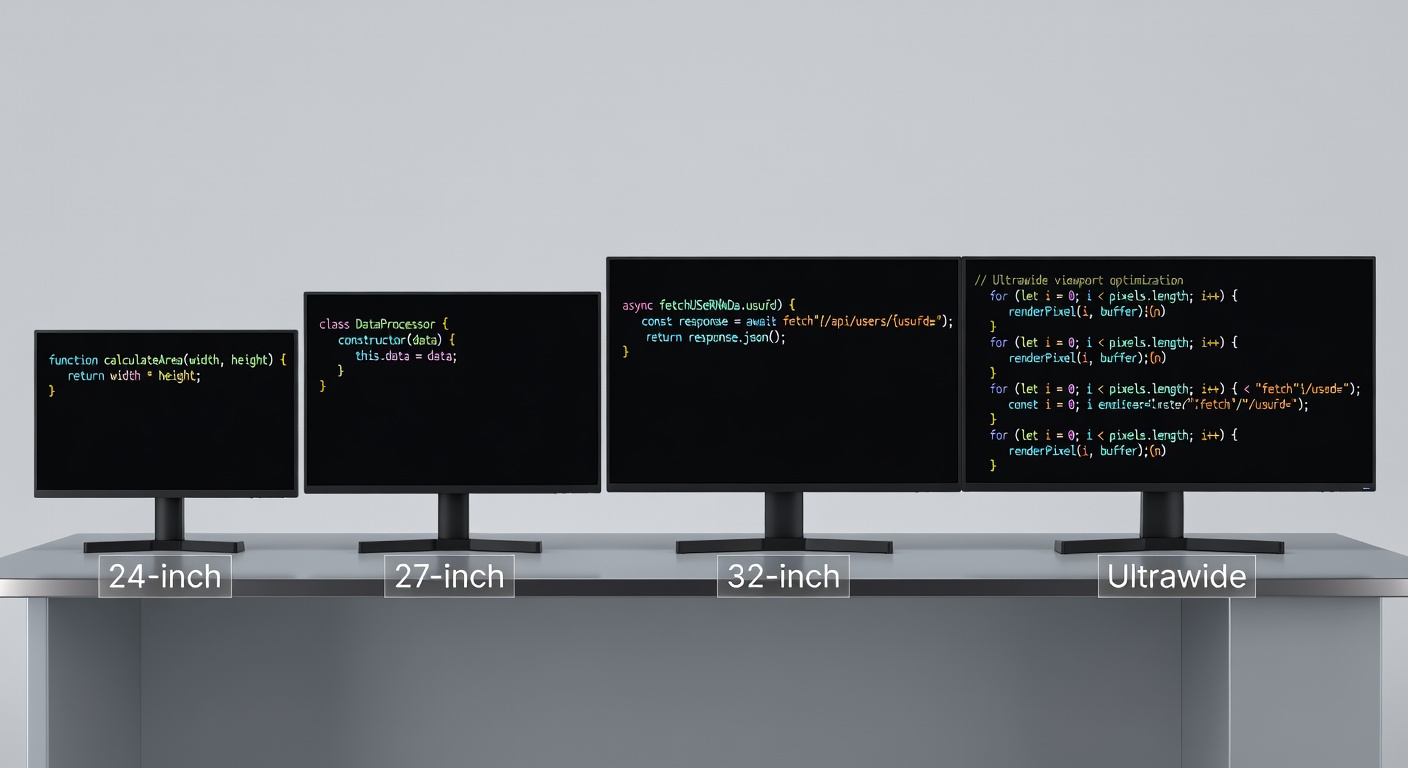
The LG 40WP95C-W is a different category entirely. It's a 40-inch ultrawide with a 5120x2160 resolution — essentially two 27" 1440p monitors side by side, but without the bezel gap in the middle. For coding, this is transformative.
Why ultrawides are great for development:
You can comfortably display your IDE, a terminal, and a browser side by side at readable sizes — all on a single panel. No multi-monitor alignment issues, no bezel interrupting your view, no fiddling with display settings. It's the simplest path to a multi-window workflow.
The 5K2K resolution is the sweet spot for an ultrawide this size. The pixel density matches a 27" 4K display, so text is equally sharp. The Nano IPS panel delivers excellent color accuracy and wide viewing angles.
Thunderbolt 4 connectivity means a single cable carries video, 96W charging, data (including Ethernet), and daisy-chain capability. Plug in one cable, and your entire desk setup is connected.
The practicalities: You need a deep desk (at least 28 inches) to sit at a comfortable viewing distance from a 40" display. The stand is wide and heavy. And at $1,300, it's an investment. But if you have the space and budget, an ultrawide replaces the complexity of a dual-monitor setup with a single, cleaner solution.
Verdict: Best choice for developers who want maximum screen real estate without the hassle of multiple monitors.
Single Monitor vs. Dual Monitor Setup
This is one of the most common questions I get, so here's my take:
Single 4K 27" monitor:
- Clean desk, simple setup
- Good for focused, single-window work
- Best with tiling window manager (Rectangle, Magnet, i3)
- More affordable
Dual 4K 27" monitors:
- Maximum real estate for multi-window workflows
- Code on one, browser/terminal on the other
- More desk space required
- Bezel gap between screens can be annoying
Single ultrawide (34-40"):
- Best of both worlds — width of dual monitors, no bezel gap
- More expensive than a single 27" but often cheaper than two
- Requires deeper desk
- Some applications don't handle ultrawide resolutions well
My setup: I use the LG 27UN850-W as my primary display with my laptop screen as a secondary. For most developers, a single high-quality 4K 27" monitor plus your laptop screen provides excellent productivity at a reasonable cost.
If you're building a complete desk setup, check out our best home office setup guide for how the monitor fits into the bigger picture, and our best laptops for developers guide for choosing the right laptop to pair with your external display.
Monitor Settings for Comfortable Coding
Once you have your monitor, optimize these settings:
-
Brightness: Match your monitor brightness to your ambient lighting. If the screen looks like a light source in your room, it's too bright. 120-200 nits is typical for indoor office work.
-
Color temperature: Warm up the color temperature slightly (5500K-6000K instead of the default 6500K). This reduces blue light without needing a dedicated mode that makes everything orange.
-
Scaling: On macOS, use "Default" or one notch above for 4K at 27". On Windows, 150% scaling is the sweet spot for 27" 4K. On Linux, experiment with fractional scaling or use integer 200% scaling.
-
Font rendering: Enable sub-pixel rendering if your OS supports it. On macOS, font rendering is excellent by default. On Windows, enable ClearType and tune it. On Linux, adjust your fontconfig settings.
-
Dark mode considerations: If you use dark mode, reduce brightness further. Dark-mode text on a bright backlight creates more contrast than your eyes want.
For more on how your other peripherals complement your monitor, see our best mechanical keyboards guide. And for block-out-the-world focus, the Sony WH-1000XM5 headphones are my top recommendation alongside a great display.
Quick Buying Guide
| Need | Recommendation | Price |
|---|---|---|
| Best value 4K | LG 27UN850-W | $450 |
| Best for dev + design | ASUS ProArt PA279CRV | $550 |
| Best for dark mode | Dell U2723QE | $520 |
| Best budget 4K | Samsung ViewFinity S8 | $400 |
| Best ultrawide | LG 40WP95C-W | $1,300 |
Invest in a good monitor. Your eyes spend more time on it than any other object in your workspace. It's worth getting right.
What display are you coding on? Single, dual, or ultrawide? Let me know on X (@wikiwayne) — I'm always curious about other developers' setups.
Recommended Gear
These are products I personally recommend. Click to view on Amazon.
LG 27UN850-W 4K UHD — Great pick for anyone following this guide.
ASUS ProArt PA279CRV 27" 4K — Best for developers who also do design work.
Dell UltraSharp U2723QE — Best IPS Black panel for dark mode coding.
Samsung ViewFinity S8 27" 4K — Best budget 4K with Intelligent Eye Care.
LG 40WP95C-W 5K2K Ultrawide — Best ultrawide for maximum coding real estate.
 Logitech MX Keys S Wireless — Great pick for anyone following this guide.
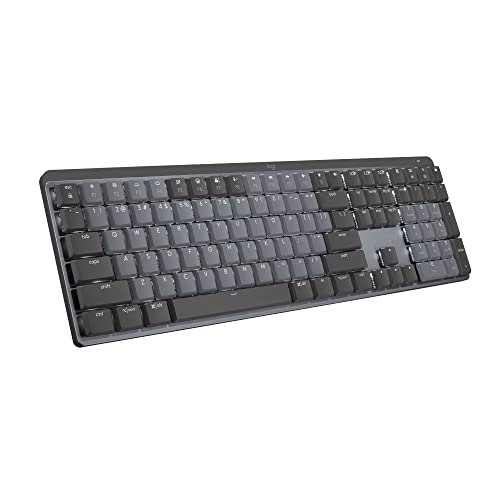 Logitech MX Mechanical Mini — Great pick for anyone following this guide.
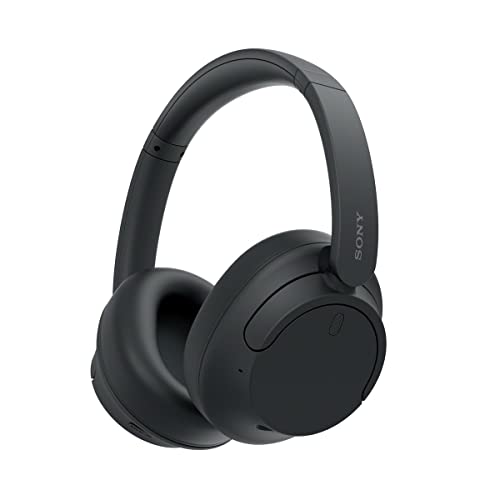 Sony WH-1000XM5 — Great pick for anyone following this guide.
 UGREEN USB-C Hub 6-in-1 — Great pick for anyone following this guide.
This article contains affiliate links. As an Amazon Associate I earn from qualifying purchases. See our full disclosure.
Affiliate Disclosure: As an Amazon Associate I earn from qualifying purchases. This site contains affiliate links.