Disclosure: As an Amazon Associate I earn from qualifying purchases. This site contains affiliate links.

Best Mechanical Keyboards for Developers in 2026

Local LLMs on NVIDIA Spark / ASUS GX10
Best Mechanical Keyboards for Developers in 2026
I type somewhere between 8,000 and 12,000 words per day between code, documentation, Slack messages, and articles like this one. My keyboard is the single most important piece of hardware on my desk — more than my monitor, more than my laptop, more than my chair.
Over the past two years, I've owned and tested eleven mechanical keyboards. Some were outstanding. A few were genuinely bad. Most fell somewhere in the middle — good keyboards that didn't quite justify their price.
Here are the five that I'd actually recommend to a fellow developer in 2026, along with everything you need to know about switches, layouts, and ergonomics to make the right choice.
Why Mechanical Keyboards Matter for Coding
Let me address the skeptics first: yes, you can write great code on any keyboard. The stock keyboard that came with your laptop or desktop is functionally fine. Nobody ever shipped buggy code because of their keyboard.
But if you type 6-12 hours a day, the difference between a mediocre keyboard and a great one is significant:
- Reduced finger fatigue — mechanical switches require less bottoming-out force, which reduces strain over long sessions
- Better accuracy — tactile and clicky switches provide physical feedback that confirms keystrokes, reducing errors
- Customizability — programmable layers, macros, and key remapping let you optimize your layout for your workflow
- Durability — mechanical switches are rated for 50-100 million keystrokes vs. 5-10 million for membrane keyboards
- Typing enjoyment — this sounds superficial, but using a keyboard that feels good makes the 8-hour coding day more pleasant
The developers I know who've switched to quality mechanical keyboards universally say they'd never go back. That's not confirmation bias — it's the product being genuinely better for the use case.
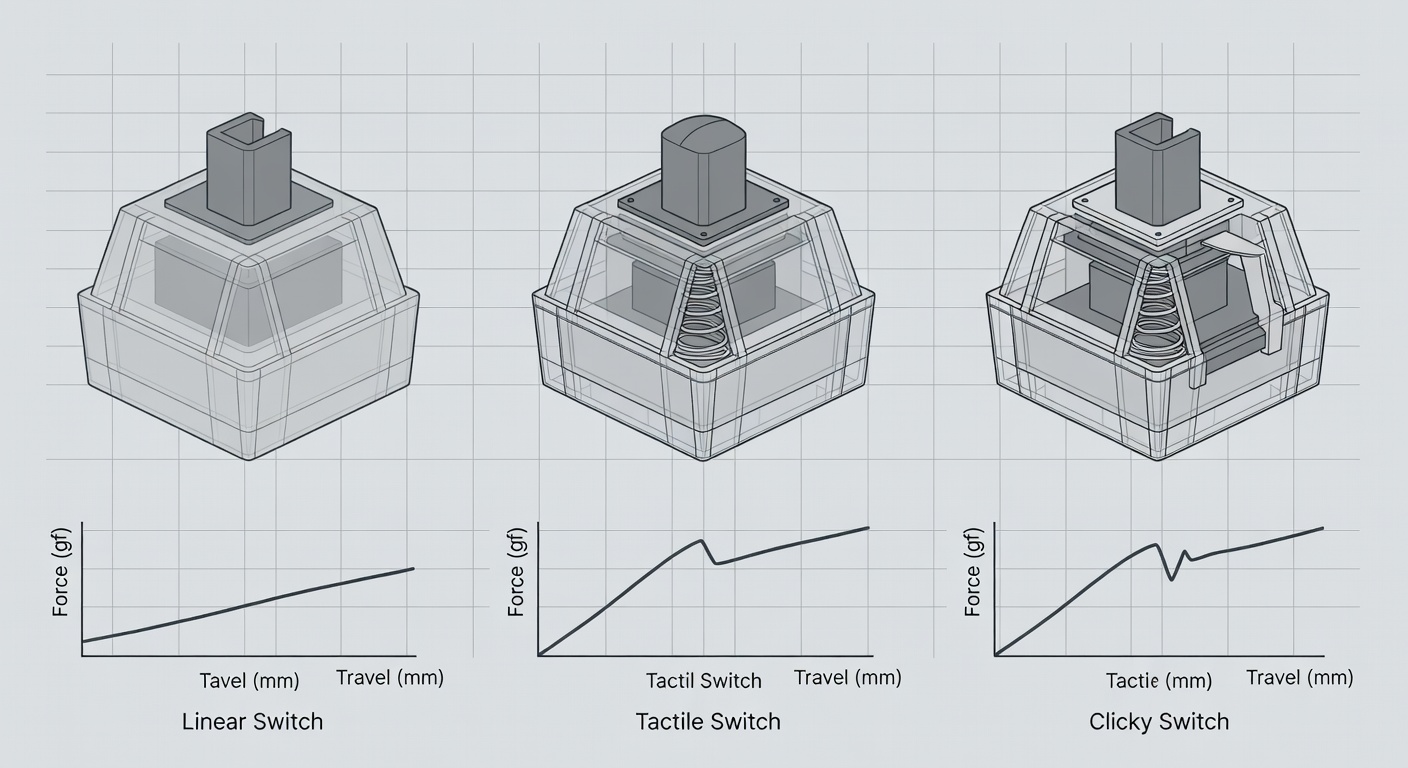
Switch Types Explained (Quick Guide)
If you're new to mechanical keyboards, switches are the individual mechanisms under each key. They determine how the keyboard feels and sounds.
| Switch Type | Feel | Sound | Best For |
|---|---|---|---|
| Linear (Red, Black) | Smooth, no bump | Quiet to moderate | Gaming, fast typing, office use |
| Tactile (Brown, Clear) | Noticeable bump at actuation | Moderate | Coding, general typing, balanced |
| Clicky (Blue, Green) | Bump + audible click | Loud | Typists who want feedback, solo offices |
My recommendation for developers: Start with tactile switches. The bump at actuation gives you confirmation that the keystroke registered without needing to bottom out the key, which reduces finger strain. Browns are the most popular, but I prefer slightly heavier tactile switches like Gateron Brown Pro or Boba U4T for longer sessions.
If you're in an open office or take video calls frequently, linear switches or silent tactile switches (like Boba U4 silents) keep the noise down without sacrificing the typing experience.
Top 5 Mechanical Keyboards for Developers
1. Keychron Q1 Pro — Best Overall
$199 | 75% layout | Hot-swap | Wireless + Wired | Aluminum
The Keychron Q1 Pro hits the perfect intersection of quality, customizability, and value for developers. It's the keyboard I currently use daily, and I've yet to find a reason to switch.
Why developers love it:
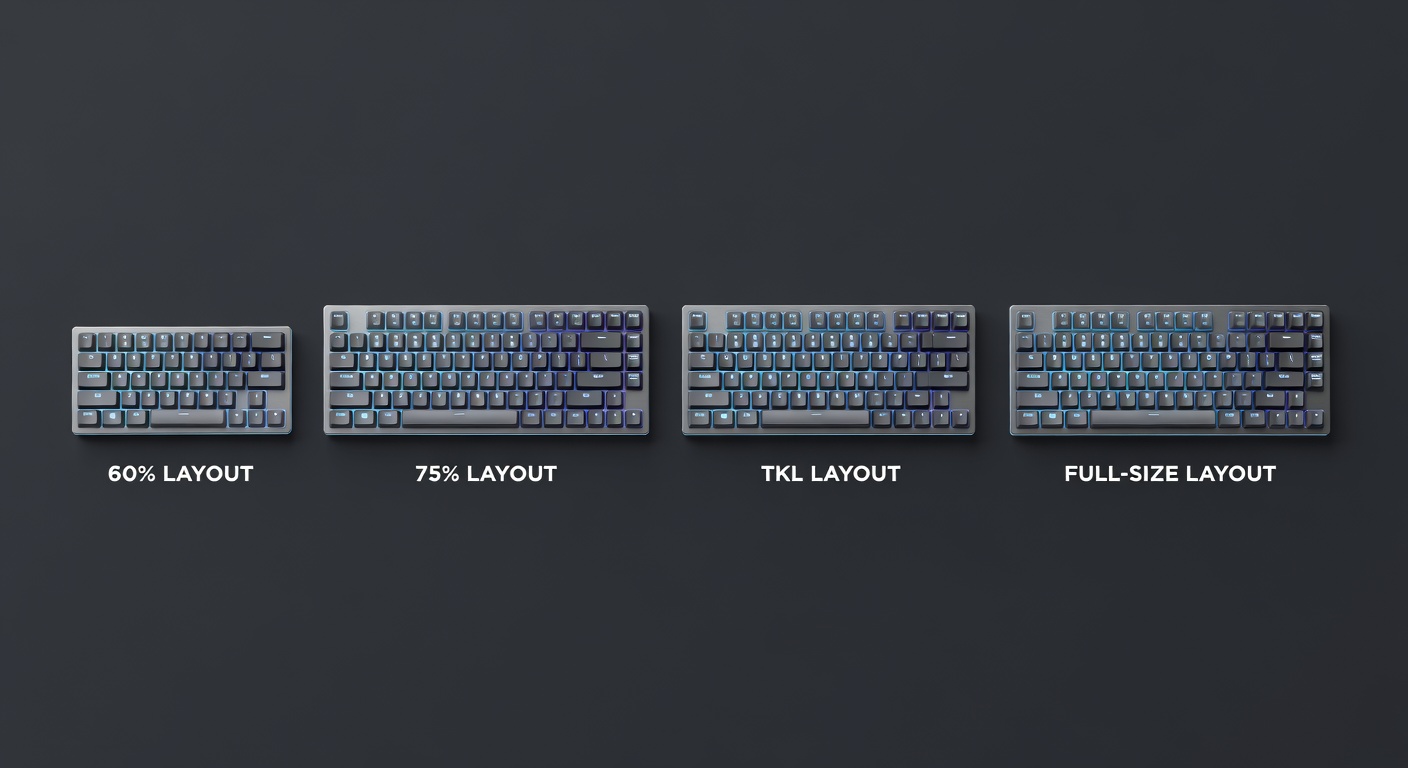
- 75% layout includes function row and arrow keys — the ideal coding layout. You get every key you actually use without wasting desk space on a numpad you never touch.
- Hot-swap sockets let you change switches without soldering. Start with browns, try reds later — no commitment required.
- QMK/VIA firmware means fully programmable layers, macros, and key assignments. I have a custom layer that maps home row keys to arrow keys when I hold Caps Lock, which is transformative for code navigation.
- Gasket mount provides a slightly flexible, cushioned typing feel that reduces fatigue during long sessions.
- Bluetooth 5.1 + USB-C means clean wireless operation or reliable wired connection.
The typing experience is excellent out of the box and gets better with switch and keycap upgrades. The stock Gateron Jupiter Brown switches are good. Replacing them with Boba U4T switches made it outstanding.
Minor quibbles: The stock keycaps are decent but not premium. The Bluetooth connection occasionally hiccups when waking from sleep (a firmware fix usually resolves this). At 3.9 pounds, it's heavy enough that you won't accidentally slide it around, but it's not ideal for travel.
Verdict: If you want one keyboard recommendation and don't want to overthink it, buy the Q1 Pro.
2. HHKB Professional Hybrid Type-S — Best for Vim/Terminal Users
$340 | 60% layout | Topre switches | Wireless + Wired | Plastic
The Happy Hacking Keyboard is a legend in the developer community, and the Professional Hybrid Type-S is its best iteration. This is a polarizing choice — people either love it or find it absurd. I'm firmly in the love camp.
What makes it special:
The HHKB's 60% layout eliminates everything except the essential keys, and then rearranges what's left for programmer efficiency. Control is where Caps Lock normally lives (where it belongs). Backspace is where backslash usually sits (one row down from normal). There's no dedicated arrow key cluster — you use Fn combinations.
This sounds insane if you've never tried it. In practice, it means your hands never leave the home row for anything. Once the muscle memory clicks (2-3 weeks), it's the fastest layout I've ever used for terminal work, Vim, and code editing.
Topre switches are unique — they're capacitive rubber dome over spring, technically not mechanical. But they feel unlike anything else: a soft, rounded tactile bump with a satisfying "thock" sound. The Type-S adds silencing rings that make them quiet enough for any office.
Who should skip it: If you rely on arrow keys, function keys, or a traditional layout, the HHKB will drive you crazy. If you're a Vim user or terminal power user who values hand positioning above all else, there's nothing better.
3. ZSA Voyager — Best Ergonomic Split
$365 | Split ergonomic | Hot-swap | Wired (USB-C) | Low-profile
The ZSA Voyager is the most radical keyboard on this list, and it might be the smartest choice for developers concerned about long-term wrist and shoulder health.
The ergonomic case:
Standard keyboards force your wrists into ulnar deviation (angled outward) and pronation (palms facing down). Over years of heavy typing, this contributes to carpal tunnel syndrome, tendonitis, and general discomfort. A split keyboard like the Voyager lets you position each half at your natural shoulder width with a slight tent angle, keeping your wrists straight and relaxed.
What I like:
- Columnar layout aligns keys vertically rather than staggered, which matches natural finger movement
- Thumb clusters put frequently used keys (Enter, Space, Backspace, modifiers) under your strongest fingers
- ZSA's Oryx configurator is the best keyboard configuration tool I've used — visual, intuitive, and powerful
- Low-profile Choc switches require less finger travel, further reducing fatigue
- Extremely portable — each half is thin and light enough to toss in a laptop bag
The learning curve:
I'll be honest: the Voyager has a 2-4 week learning curve where your typing speed drops significantly. The columnar layout and split design require retraining muscle memory. But once you adapt, most users report typing speeds equal to or higher than their previous keyboard, with dramatically less strain.
Who it's for: Developers who type 6+ hours daily and want to invest in long-term hand health. Anyone with existing RSI symptoms. Developers willing to invest time in learning the optimal layout.
4. Nuphy Air75 V2 — Best Low-Profile / Travel
$129 | 75% layout | Hot-swap | Wireless + Wired | Aluminum
The Nuphy Air75 V2 is the best keyboard for developers who want mechanical feel in a slim, portable package. At just 16mm thick, it's barely taller than a laptop keyboard — but it types like a proper mechanical.
Why it works:
- Low-profile Gateron switches provide real mechanical feel without the height of full-size switches
- 75% layout gives you everything you need for coding
- Multi-device Bluetooth connects to three devices simultaneously and switches between them with a keypress
- Great battery life — 2-3 weeks on a single charge with RGB off
- Lightweight at 1.2 pounds — easy to throw in a bag
How it types:
The low-profile switches feel different from traditional mechanical keyboards. The travel is shorter and the actuation is lighter. Some purists don't like this. I find it works well for the specific use case of a portable development keyboard — it's close enough to a laptop keyboard feel that the transition is seamless, but with much better tactile feedback.
The compromises: The low-profile keycaps are proprietary, so aftermarket replacement options are limited. The Bluetooth can occasionally connect to the wrong device. Build quality is good but not Keychron Q1 Pro level.
Who it's for: Developers who work from multiple locations, anyone who uses a laptop at a coffee shop and wants a better keyboard, people transitioning from laptop keyboards.
5. Das Keyboard 4 Professional — Best Traditional Full-Size
$169 | Full-size | Cherry MX switches | Wired | Aluminum
Not everyone wants a compact layout. If you use the numpad regularly (database work, financial data, spreadsheets alongside code), the Das Keyboard 4 Professional is the best full-size option for developers.
What Das does well:
- Cherry MX Blue or Brown switches — proven, reliable, and well-characterized
- Built-in USB 3.0 hub — plug in your mouse, flash drives, or USB devices directly into the keyboard
- Solid aluminum top plate — this keyboard will outlast your career
- Clean aesthetic — no gaming RGB, no gimmicks, just a professional tool
The typing experience is straightforward: it's a high-quality implementation of Cherry MX switches in a traditional layout. Nothing surprising, nothing disappointing. It types exactly like you'd expect a premium mechanical keyboard to type.
The downsides: It's wired only (no Bluetooth option). The layout is standard — no programmable layers or fancy firmware. The keycaps are laser-etched ABS, which will develop shine over time. At 2.9 pounds, it's not going anywhere.
Who it's for: Developers who want a reliable, no-nonsense full-size keyboard. Anyone who uses the numpad daily.
Hot-Swap vs. Soldered: Why It Matters
Hot-swap sockets are one of the most important features for developers buying their first mechanical keyboard. They let you pull out and replace switches without any soldering — just grab a switch puller, pop one out, push a new one in.
Why this matters:
- You can try different switches without buying a new keyboard
- If a single switch fails, you replace just that switch (not the whole board)
- You can use different switches for different keys (heavier on spacebar, lighter on modifiers)
- It future-proofs your purchase — new switch designs come out constantly
Every keyboard on this list except the HHKB and Das Keyboard supports hot-swap. I'd recommend prioritizing this feature, especially for your first board.
My Keyboard Setup for Coding
Here's what I actually use daily:
- Main desk: Keychron Q1 Pro with Boba U4T switches and GMK keycaps
- Travel: Nuphy Air75 V2 with stock low-profile brown switches
- When my wrists complain: ZSA Voyager with Kailh Choc Brown switches
I pair all three with a Logitech MX Mechanical Mini as a backup — it's a solid hybrid between mechanical feel and mainstream convenience that I keep at my secondary desk.
For developers who aren't ready to go fully mechanical, the Logitech MX Keys S is the best non-mechanical keyboard I've tested. The typing feel is surprisingly good for a membrane board, and the multi-device switching is excellent.
For the full desk setup picture including monitors, mice, and more, check out our best home office setup guide and best monitors for coding.
Keyboard Ergonomics Tips for Developers
Regardless of which keyboard you choose, these habits will protect your hands:
- Keep your wrists straight — your keyboard should be at elbow height, and your wrists should float, not rest on the desk
- Don't bottom out keys — type with enough force to actuate the switch, then lift. Slamming keys into the plate adds strain.
- Take breaks — the 20-20-20 rule applies to typing too. Every 20 minutes, rest your hands for 20 seconds.
- Consider a wrist rest — for palm support during pauses, not while actively typing
- Tilt your keyboard flat or negative — the feet on the back of your keyboard are ergonomically backwards. A slight downward tilt toward the back is better for wrist alignment.
Quick Buying Guide
| Priority | Recommendation | Price |
|---|---|---|
| Best overall for coding | Keychron Q1 Pro | $199 |
| Best for Vim/terminal | HHKB Professional Hybrid Type-S | $340 |
| Best for hand health | ZSA Voyager | $365 |
| Best for travel | Nuphy Air75 V2 | $129 |
| Best traditional full-size | Das Keyboard 4 Professional | $169 |
| Best non-mechanical alternative | Logitech MX Keys S | $109 |
The keyboard you use for 8+ hours a day is worth investing in. Your fingers will thank you.
What keyboard are you typing on right now? Got a favorite switch? I'd love to hear about your setup — follow me on X (@wikiwayne) and share your build.
Recommended Gear
These are products I personally recommend. Click to view on Amazon.
 Logitech MX Keys S Wireless — Great pick for anyone following this guide.
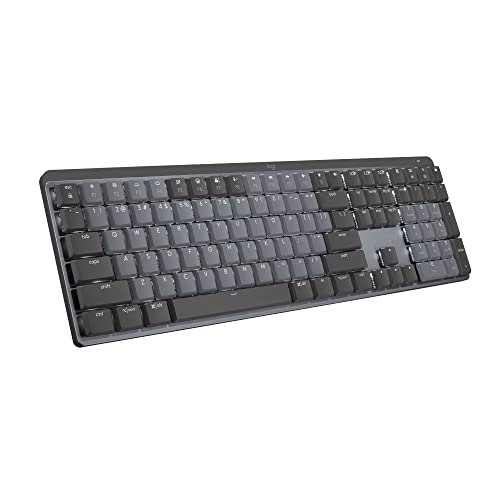 Logitech MX Mechanical Mini — Great pick for anyone following this guide.
 ASUS ProArt PA279CRV 27" 4K — Great pick for anyone following this guide.
 LG 27UN850-W 4K UHD — Great pick for anyone following this guide.
 Sony WH-1000XM5 — Great pick for anyone following this guide.
 Samsung T7 Portable SSD 1TB — Great pick for anyone following this guide.
This article contains affiliate links. As an Amazon Associate I earn from qualifying purchases. See our full disclosure.
Affiliate Disclosure: As an Amazon Associate I earn from qualifying purchases. This site contains affiliate links.